Recently, I’ve been working a lot with PySpark in AWS EMR. I have a huge data dump (~300 million users) that I needed to process and transform it into the right format for further processing. The data is in a S3 bucket in AWS and I use AWS EMR to launch a cluster of r5.2xlarge instances to run the spark application. We use a Hadoop YARN resource manager.
Once you launch a spark application, you get access to a corresponding Spark UI interface that gives you an option to look at the overall status of the jobs, tasks, executors and other details. In today’s post, I will be talking about what to look for in the Spark UI when you launch a spark application. I’ve been using SparkUI a lot over the last few months and thought writing a post on this would be useful for others as well. Let us begin.
Spark overview
Before we proceed with the introduction to SparkUI, a quick refresher on Spark vocabulary will be useful. There are three main components of spark:
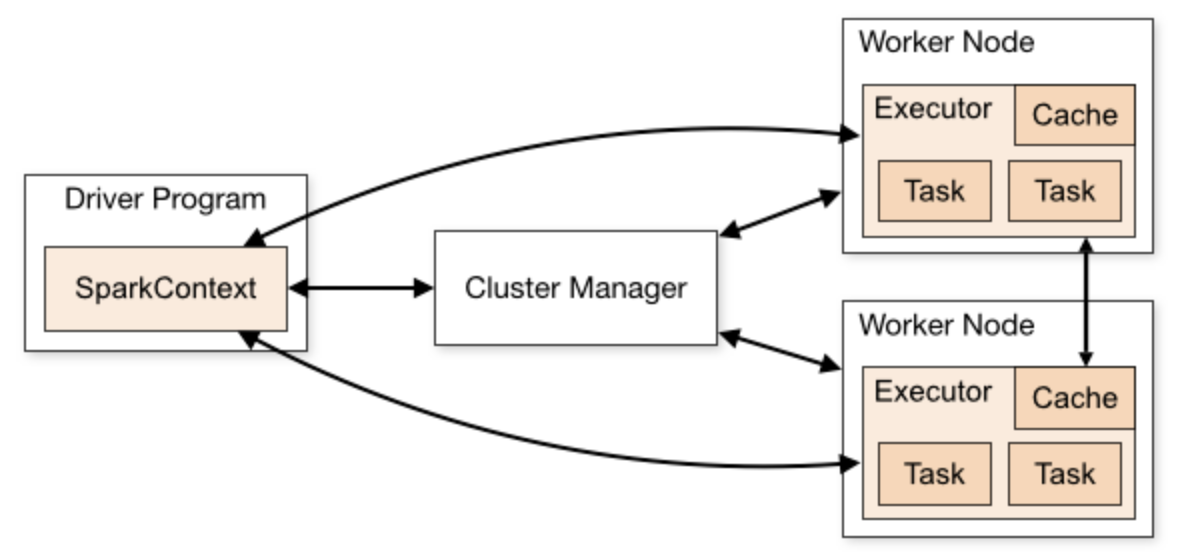
Driver program (sparkContext)
- this is the heart of spark in cluster - keeps live status of the application
- if the driver process dies due to some reason say OutOfMemory error, your spark application will be killed as well
- contains the code that needs to be run
- it there is only machine/process you could monitor, it has to be the driver process
Cluster manager
- acts as the bridge between the driver program and the worker nodes
- also allocates resources to different spark applications
Worker instances
- the instances/machines that form the cluster
- they consists of executors and these executors are the actual horses that do the actual code execution
Let us talk a little about the cluster managers. As I’ve just mentioned above, a cluster manager is the bridge between the sparkContext and the worker nodes and allocates resources to different spark applications. There are four most commonly available cluster managers:
In-built spark Standalone cluster manager
- Good for starting but eventually you will have to graduate to other cluster managers - Hadoop YARN or Apache Mesos
- Not used by a lot of people because there are better alternatives available
Hadoop YARN (Yet Another Resource Negotiator)
- Hadoop YARN is just a framework for job scheduling and resource management
- Spark has nothing to do with Hadoop in Hadoop YARN
Apache Mesos
- Founded by the founders of Spark itself
- Apache Mesos is considered very heavy-weight and should be used only if you already have Mesos configured in your large scale production system
Kubernetes cluster manager
- This is open-source and is used a lot by people
- This is open-source and is used a lot by people
SparkUI under the hood
When a spark application is launched within a sparkContext, there are few processes that are run in background that are used by the sparkUI. Some of the processes are:
LiveListenerBus: processes events as the application is live and kicking
JobProgressListener: 1. responsible for collecting all data that sparkUI uses to show statistics 2. the information that we see under Jobs tab in SparkUI is because of this listener bus
Creates optional sparkUI if
spark.ui.enabledis set TrueEnvironmentListener, StorageStatusListener, RDDOperationsGraphListener 1. Likewise each of the above buses are responsible for other tabs in the SparkUI
It is because of these SparkListeners that we are able to see the information on the jobs, executors, tasks in the Spark UI. So in essence, under the hood, Spark UI is a bunch of SparkListeners running and collecting all information for the jobs/executors.
SparkContext and spark applications
A sparkContext can have multiple Spark applications running and each application will have its own corresponding Spark UI. Spark UI for an application can be accessed in port 4040 and successive applications will be given the next port numbers - 4041, 4042 and likewise. If you are running Spark in local, you can access the Spark UI at http://localhost:4040. You can change the port number using spark.ui.port in conf/spark-env.sh. Spark history server enables you to look at Spark UI even after the application is shut down. However, you will have to persist the Spark UI to access the history server using the property – spark.eventLog.enabled which defaults to True.
To enable persisting of Spark UI, the property is spark.eventLog.enabled which defaults to True. To enable the Spark UI, the property is spark.ui.enabled which defaults to True.
Below are few examples of Spark applications:
Spark application responsible for loading data from S3, processing and transforming it and then saving it back to S3 for the next job to consume it
Running two jupyter notebooks in your local Spark are examples of two running applications. Spark UI of each of the applications will be available at http://localhost:4040 and http://localhost:4041 if they are available
Each of the applications in sparkContext are run independent of each other. It is the responsibility of the cluster manager to allocate executors for each of these applications. A worker node has many executors and the same worker node can be assigned to multiple applications but each executor will allocated to only one application. The cluster manager ensures that a single executor is not allocated to more than one application.
Now before we start with the Spark UI, let us do a quick refresher of the Spark vocabulary that will help us better understand what to look for in Spark UI.
Spark vocabulary
Job
- Whenever an action is called a job is triggered
- Examples of action in Spark are collect, aggregation functions like count, sum, or writing data to s3
- A job is broken into stages, the number of which depends on how many shuffle operations are there in the job
Stages
- A job is broken into a DAG (directed acyclic graph) of stages
- A stage is a collection of similar tasks that can be performed together
- Stages can either depend on each other or be run independently. Stages that are not interdependent on each other are run in parallel
- The driver keeps track of how the stages should interact with each other to finally get the job done
Task
- A task is a unit of computation that is applied to a block of data (partition)
- So, it is a combination of the operation and the block of data on which the operation will be applied
- It is the only abstraction of job that interacts with the hardware - task is executed in an executor in a worker node
Executors
- The processes in worker nodes that do the actual execution of the code
- Each executor is assigned a task and keeps data in memory or disk
- Think of the executors as the horses on the grosund that do the actual code execution
Worker instances
The machines or instances that form the cluster
### Navigating the Spark UI tabs Now that we understand the basic vocabulary of Spark, we will go through each of the tabs in Spark UI and what to look for in them. The following are the six tabs available:
Jobs
- This will contain all the jobs you run in your application - it also tells you how many stages and tasks were there in total in the job
Stages
- This shows all the information around stages - both complete and running
- Tells you how long each stage is taking to run and into how many tasks a stage is broken into
Storage
- This will contain information about the data that you may have persisted/cached. If there is not data cached, then this will be empty
Environment
- Contains information about the spark configurations and some java configurations
Executors
- This is where you will see a detailed information on how your executors are doing with respect to task execution
- It also gives a summary of the time taken by executors to complete the tasks
SQL
- Here you will see the DAG of the query that you have executed (either via Dataframes API or SQL API) in the job
Okay, I understand what Spark UI is but what do I do with it? Understanding Spark UI is one of the first steps toward spark optimisations of your spark job. The UI tells you if there is a particular stage which is taking a long time to run and whether you can do something about it. Having a good understanding of Spark UI is of profound importance if you want to monitor/debug your Spark jobs.
And with that I will end this post. Play around with the Spark UI, keep monitoring the various tabs, and this will become one of your favourite things about running spark jobs. I certainly keep an eye out for anything abnormal happening in the Spark UI when running spark jobs.
- Here you will see the DAG of the query that you have executed (either via Dataframes API or SQL API) in the job